User's Guide
Project Webs
You can now create an unliminted number of pages within your project. Together, these pages make up your project’s “web[1].” Pages can be nested hierarchically within your project’s web, making them a powerful tool for organizing and presenting information.
Building Your First Web Page
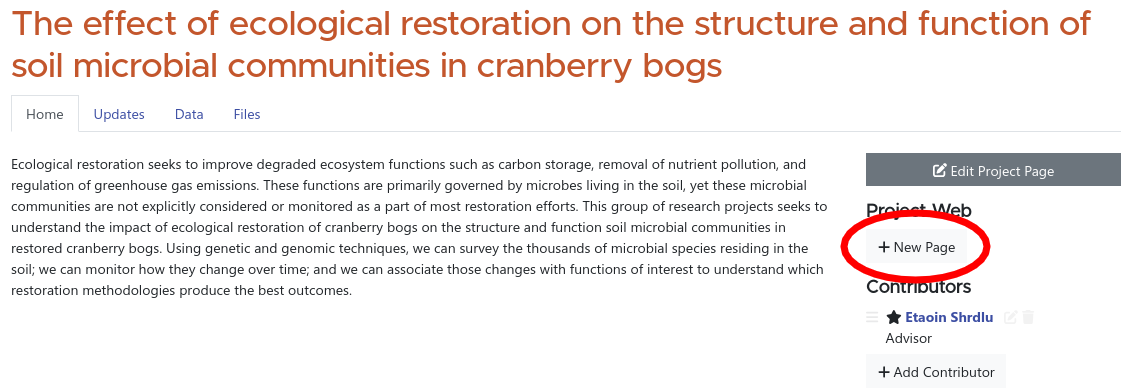
To add the first web page to your project, click the “New Page” button under the “Project Web” heading in the right column of your project’s home page. (This will only appear on projects that you have permission to edit). This will take you to the editor to create a new page.
The editor screen works just like other editors on the site, with a few additional features that will be covered later. In the large box at the top, enter the title for your page.
Below the title, enter a URL slug[2] for your new page. This is similar to a filename and becomes part of the URL that visitors can use to reach this page.
Choosing a Good URL Slug: A good URL slug is short (so that it is easy to type) and should be a good identifier for the page that it represents. You can use lower- and upper-case letters, numerals, hyphens, and underscores (the field will turn red if you try to use invalid characters). Note that spaces are not allowed; use hyphens or underscores instead. Usually, URL slugs are all lower case, but sometimes capitals can help (e.g. for acronyms).
For example, a page titled “Environmental Sensor Nodes” might have a slug of
environmental-sensorsor simplysensors.
Enter the content of your page into the main field of the editor. (For more info, see Using the Editor.
At the bottom of the editor, you can click the “Save and Publish” button when you are done, which will make the page viewable to anyone who can see your project. Alternatively, if you are still working on the page but want to save your changes, you can click the “Save Draft” button. Drafts are only visible to members of your project.
Adding More Pages
Once you have created your first page, there are several ways you can add more.
- You can once again use the “New Page” button in the right column of your project’s home page. This will add a new top-level page.
- Once your project has at least one page, there will be a new “Web” tab. Clicking this tab will take you to your project web’s main table of contents. There is a “New Page” button at the bottom of the table of contents, which will also add a new top-level page.
- You can create a hierarchical subpage of any of your existing pages by first navigating to the page of which you’d like to create a subpage, and clicking the “New Subpage” button in its right column.
Reordering or Moving Pages
You can change the order that pages appear in the table of contents, or move a page so that it becomes a subpage of another page, from the project web’s main table of contents, which you can access by clicking on the “Web” tab in the tab bar.
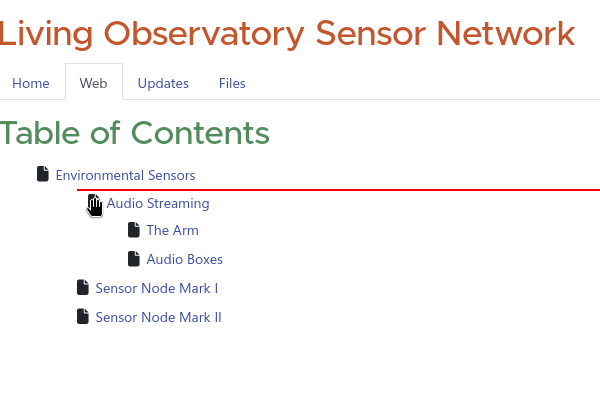
In the main table of contents, when you move your mouse cursor over the page icon for any of your pages, it will change to a hand indicating that you can grab and drag the page icon to move it.
While you are dragging the icon, moving the mouse up and down will allow you to change the order in which pages appear.
Dragging a page to the lower right of another page will let you move the page, changing its parent. The red line that appears while you are dragging will indicate where the page will be moved to. Try moving the mouse cursor left, right, up, and down while dragging and watch how the red line moves. When you release the mose button, the page will be moved.
Note that you can’t have two pages under the same parent with the same URL slug. If you try to move a page to a new parent that already has a subpage with a conflicting slug, you’ll get an error. Change the slug of one of the pages before moving to resolve the conflict.
You can move a page that has subpages. The whole structure will be moved as a group.
Note: Since the URLs of pages are hierarchical (each page’s URL is preceded by the URL of its parent) moving a page will change its URL. If your page has already been published, others may have linked to it elsewhere on the internet and moving the page to a different parent will break these existing links. This doesn’t mean you can never move a page—but think twice before reorganizing pages that are in widespread use. The site will warn you when you move a page if you are changing the URL of published pages.
Editing Pages
You can edit any of your pages by clicking the “Edit Page” button in the right column.
You can freely edit the page’s title and content. The page’s URL slug can be edited, but as with moving pages, this can break existing links outside the platform, so think twice before editing the slug of published pages.
Controlling Page Visibility
Like many resources on the site, pages have three different publication states. You can change the publication state in the menu at the right hand side of the page editor.
- Published pages are visible to everyone who can see your project. (Generally, this means everyone, but if your whole project is private then published pages will be as well).
- Private pages are only visible to members of your project (i.e. people who are listed on the contributors list). For visitors who are not logged in or are not part of your project, these pages will be completely hidden from the table of contents.
- Draft pages are also only visible to members of your project.
Private and draft pages will be marked with special tags in the table of contents so you can easily see their publication states. A “Draft” or "Private" label will also appear next to the title on the page itself.
Deleting Pages
If you want to delete a page, you can do so by first editing it, and then scrolling down to the bottom where there is a “Delete Page” button. Deleting pages is permanent, so make sure you are certain you want to do so.
You can’t delete a page that has subpages. Move the subpages to the top level or to another parent first.
Navigation Tools
Continue reading to learn about features for navigating through project webs.
Like the World Wide Web, this term comes from the “web” of links through which a visitor can navigate. ↩
This term comes from the publishing industry, where it refers to a word or two that serves as a placeholder for a news story. (In the days of hot metal typesetting, it was a literal “slug” of lead type). In modern usage, the term refers to a single “chunk” of a URL, which serves as a short ’name’ for a resource that is friendly both to computers (since it only uses letters, numbers, hyphens, and underscores) and to humans (because you’ve chosen a key word or two to represent the page’s content). ↩