User's Guide
Project Web Navigation
Project webs have several features to help visitors navigate through your content.
Main Table of Contents
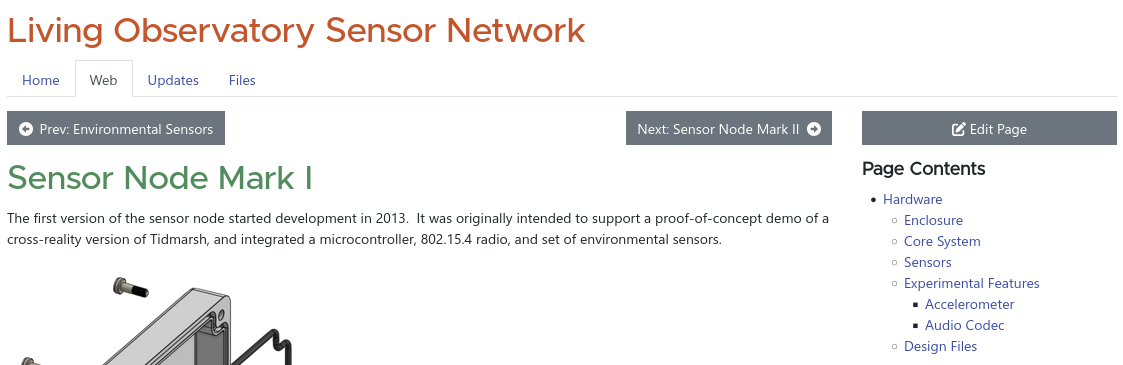
The main table of contents is accessed by clicking on your project’s Web tab. (The Web tab is selected whenever you are on any of your project’s pages, but clicking the tab will always take you back to the table of contents).
The main table of contents shows all of your pages. You can also add new top-level pages from here (by clicking the “New Page” button at the bottom) and reorder/move pages by dragging their icons. You can navigate to any page by clicking on its title.

Right Column Table of Contents
Your project’s pages also appear under a “Project Web” heading in the right column. This column appears on your project’s home page (which provides a quick way for visitors to get to any of your pages) as well as on all of your project’s web pages (which allows easy movement from page to page).
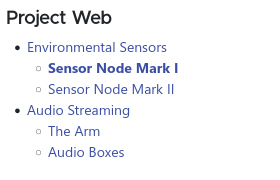
On a mobile device with a small screen, this will appear at the bottom of the page’s content rather than in a separate column.
Page Contents
If a page has more than one heading, a “Page Contents” section will be automatically generated. This will appear in the right column above the Project Web section. Clicking on these links will scroll the page so that the desired heading is at the top of the window, providing quick navigation to any of the sections within the page.
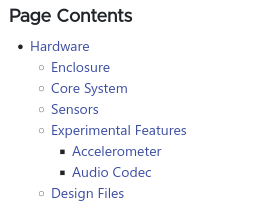
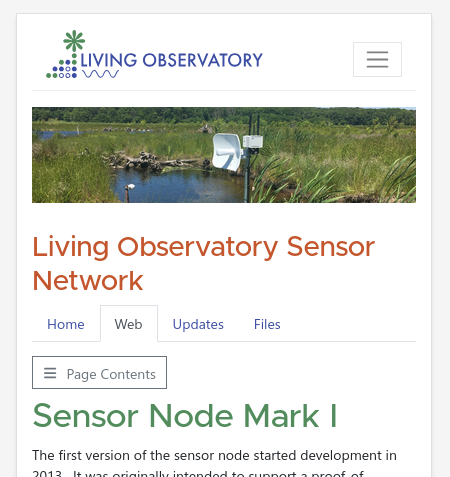
On a mobile device with a small screen, the “Page Contents” will be collapsed into a button at the top of the page. Tap the button to reveal the contents; tap it again to collapse them.
Sequential Navigation
If it is natural for a visitor to navigate your content sequentially, moving from one page to the next in a particular order, you can add Next and Previous buttons to your pages.
In the page editor, the Navigation Options section lets you set up sequential navigation. You can check the boxes to have the navigation buttons appear at the top of the page, bottom of the page, or both.
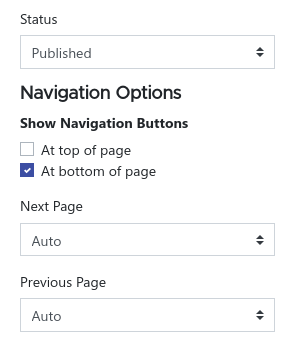
Generally you will want to include the buttons at the bottom of the page, as a reader reaching the end of a page will be ready to move on to the next one. Buttons at the top can be useful for quickly flipping through pages and reading the titles/introductions without scrolling down, but they do add a bit of clutter at the top. On a very short page it may also be redundant to have both on the screen at the same time. You have full flexibility to select what makes sense on each page.
You can also configure where the buttons will take the reader. Most of the time, this can be left on “Auto”, which will make the buttons link to the entries above and below the current page in the table of contents. If you reorder or move pages, the links will be automatically updated to match.
Sometimes, however, you might want the buttons to skip over a page, such as an appendix or supplemental content. In this case, you can select specific pages for the next and previous buttons to link to.
You might also want a reader to stop navigating sequentially at a certain point, such as if they have reached the end of an activity. Choosing "Disabled" from the menu will disable the button.
Note: Manually setting next and previous pages gives you full control, but you should try to avoid creating confusing situations for readers. Generally one expects that the Previous button on one page will go back to the page on which the Next button was clicked—keep this in mind when sequencing your pages.