User's Guide
Managing Page Authors
Large projects with many pages might have more than one author, and you might want to show which specific person or people is responsible for a particular page. You can now designate an author list for each individual page in your project web. Adding guest authors who are not project owners also delegates the ability to edit specific pages.
Adding Authors
You can add, reorder, and remove authors from each page’s edit screen. The author list appears to the right of the content area, underneath the navigation options.
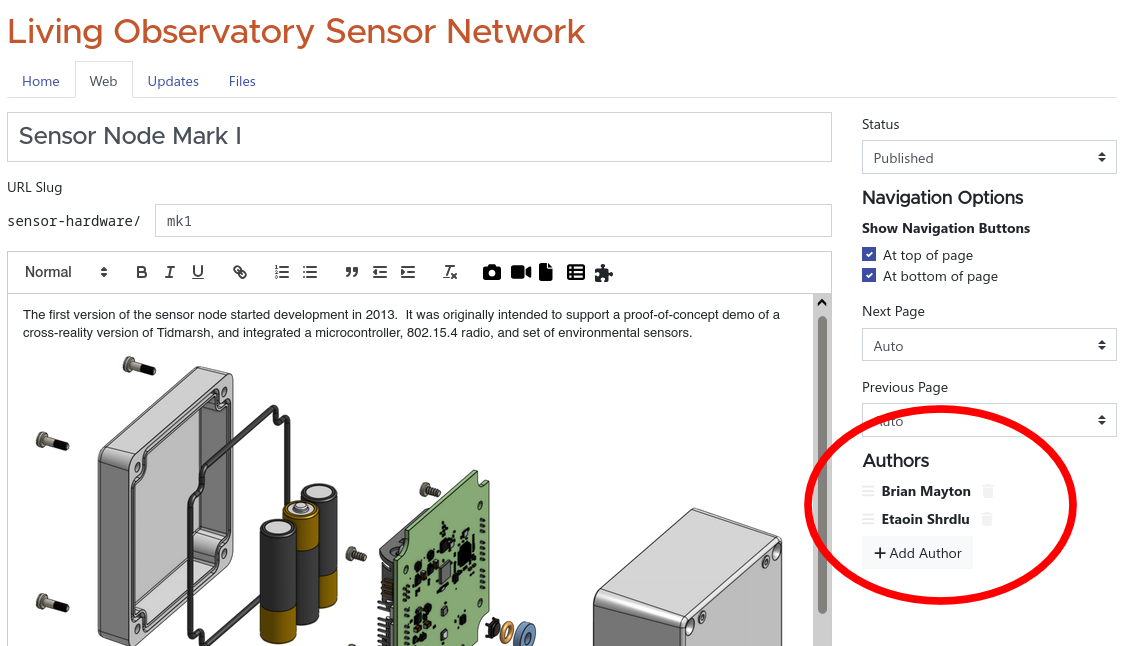
To add an author, click the Add Author button and start typing someone’s name to search for them. You can add anyone who has a profile on the site.
You can reorder authors by clicking and dragging the three lines to the left of each author’s name.
You can remove an author by clicking the trash can icon next to their name.
Author Display
When a page has at least one author, an “Authors” section will appear in the right column on the page. Clicking authors’ names will link you to their profiles.
Guest Authors and Permissions
If you add an author who is not an owner of the project, they will be granted access to edit the specific page(s) where they are listed as an author, even though they can’t edit the rest of the project.
Guest authors who are not project owners will also be able to see draft and private pages where they are listed as an author. As a project owner, you can use this to grant someone permission to build a page under your project. Create a new page, entering a title and URL slug, and add whomever you want to be able to edit the page as an author. You can leave the content blank and save the page as a draft. Your authors will then be able to see the new page as a draft in the table of contents.
Note: Authors need to be able to view the project as a whole. If the entire project is a draft or is set to private, guest authors will not be able to see any pages even if they are listed as an author.
Guest authors are allowed to create subpages under their own pages. They will automatically be assigned authorship on any subpages they create.
Guest authors can reorder their own subpages, or can move a subpage to another page that they own, from the main table of contents under the Web tab. Guest authors cannot move a subpage to a page they do not own, nor can they reorder pages under a page they don’t own.
Guest authors may delete their own pages and subpages.
Guest authors can add, remove, and reorder additional authors on their own pages. A guest author cannot remove themself from the author list, as that would remove their ability to make further changes.
Project owners can always edit, reorder, move, or delete any page under their project, regardless of author status.